Log Browser
AstroCore includes a custom log browser window that allows you to view and filter log messages generated by the application. The log browser provides an easy way to monitor the application’s behavior, debug issues, and analyze events.
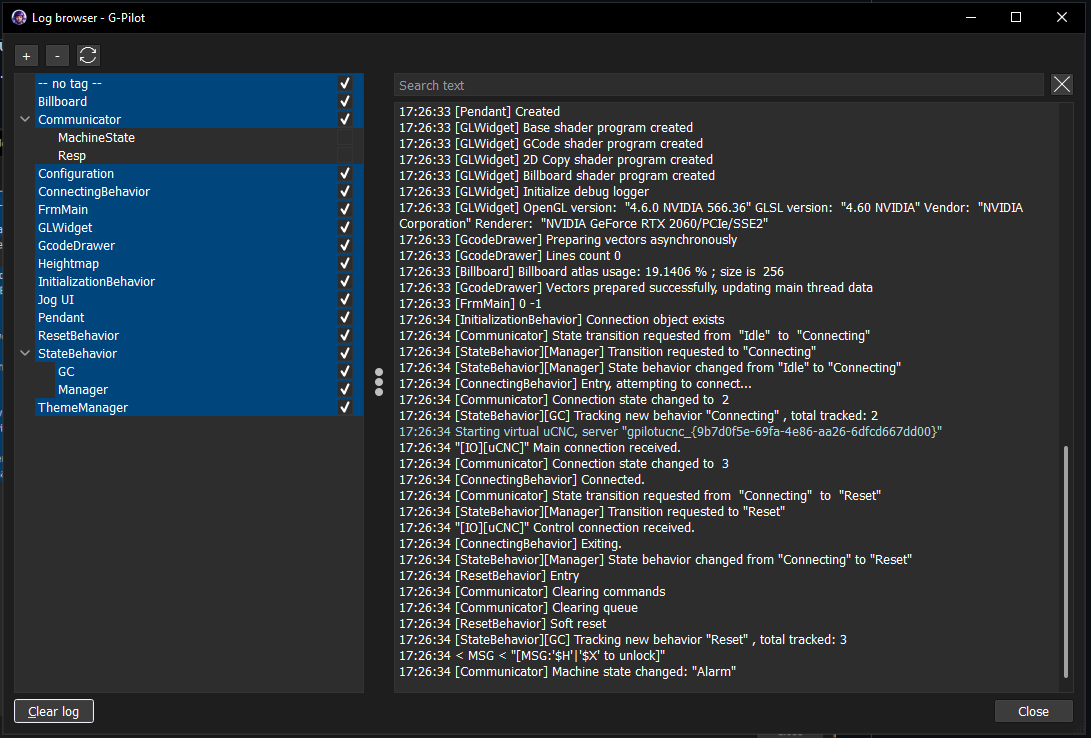
Enabling the log browser
The log browser must be enabled using command line option when starting AstroCore:
G-Pilot.exe --log-wnd
Once enabled, you can open the log browser window from the Log menu in the main window.
Note: The log browser is not available by default. You must use the --log-wnd command line option to enable it.
Features
The log browser window displays messages from the application in real-time with powerful filtering capabilities:
Category tree
Most logs are tagged with appropriate categories and subcategories, displayed as a tree on the left side of the log browser window. You can:
- Expand and collapse category branches
- Check or uncheck categories to filter the displayed messages
- Hide noisy or less interesting categories to focus on relevant information
- Your category selection is saved and automatically restored the next time you open the log browser
Text filtering
In addition to category filtering, you can filter log messages by text content, making it easy to search for specific events or keywords.
Real-time monitoring
The log browser allows you to:
- View all log messages generated during the session
- Monitor application behavior and debug issues
- Analyze events and troubleshoot problems
The log browser is particularly useful when combined with the --log-to-file command line option, which saves all messages to a AstroCore.log file for later analysis.
See also
- Command line options – All available command line switches
- Help and bug reports – How to report issues