Camera
The camera panel shows a live video feed from a connected camera (for example a USB webcam mounted on the machine). It helps you line up the tool with a point on the workpiece, check the work area, or watch the job while it runs.
Selecting a camera
Right-click on the camera view to open its menu. The menu lists all cameras detected on your computer. Pick one to start the video feed, or choose Disable to turn the camera off.
If no camera is found, the view shows a “No camera found” message.
Crosshair
A crosshair (target) can be drawn on top of the video feed to mark the exact center of the view. This makes it easier to position the tool precisely over a point on the workpiece.
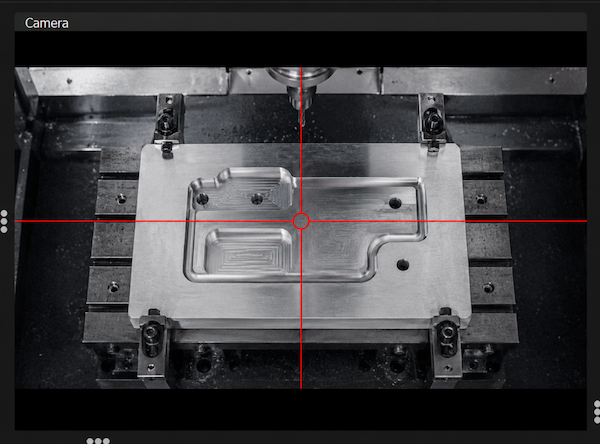
Right-click on the camera view and open the Crosshair submenu to choose a style:
- None — no crosshair (the video is shown without any overlay)
- Cross — full lines crossing the whole view
- Cross with gap — lines with a small gap in the middle and a circle at the center
- Dot — a single dot marking the center point
- Circle with ticks — a center circle with short marks around it
The crosshair scales with the video resolution, so it stays clearly visible on both low- and high-resolution cameras. Your choice is remembered and used again the next time you start the application.